

Administration
Jobs, maps and updates
For the administrator - the job queue and its lanes, the regional maps on the server and the offline maps for riders, signed updates of the Studio and the back office with backup and automatic rollback.
This chapter is for whoever runs the RoadBookAI server: three administration pages keep the service fast and up to date without opening a terminal.
Queue jobs
Generating a roadbook, downloading a map, preparing offline maps: these are jobs that run in the background, each in its own lane, so a long job does not hold up the others.
| Lane | What runs in it | Default time limit |
|---|---|---|
| Map on the server | generations that read the regional map already on the server: the fastest | 30 minutes |
| Online download | generations that download the roads along the track | 20 minutes |
| Regional map download | the download of a whole region | 60 minutes |
| Tasks | offline maps, warnings for GPX navigation and other service jobs | 360 minutes |
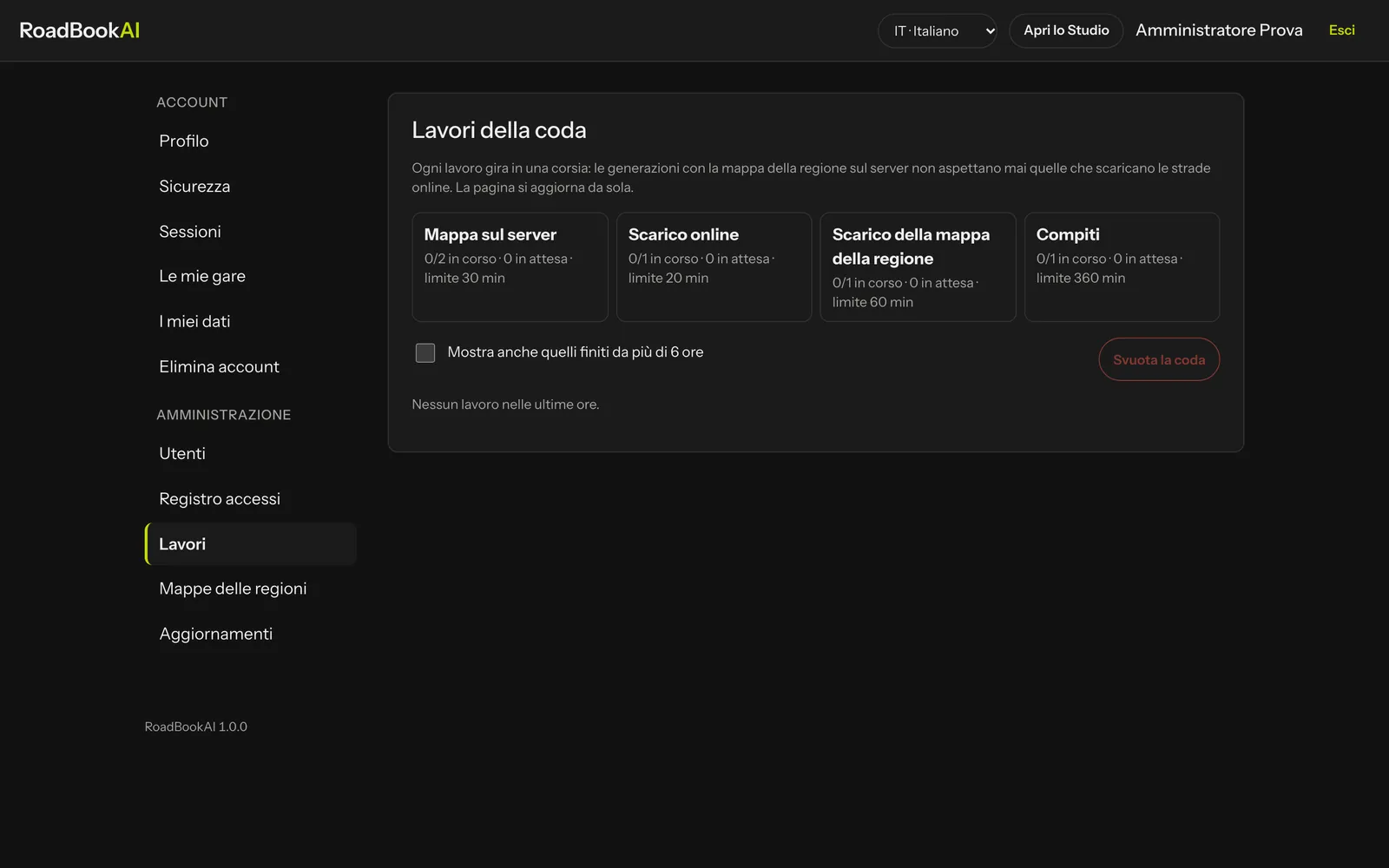 Each lane shows how many jobs are running, how many are waiting and the time limit.
The list shows each job with lane, status (queued, running, finished, error, cancelled) and duration; the page refreshes by itself. Cancel stops a job and frees its place straight away; Empty the queue cancels all waiting jobs and stops running ones (whoever requested them sees "Job cancelled by the administrator"). Someone generating a roadbook sees in the progress bar how many jobs are ahead of them and the estimated wait, and can cancel their own.
Regional maps
With the regional map on the server a roadbook is generated in a few minutes instead of hours, and without depending on online map services. Here you choose the regions to keep, update them and prepare the offline maps for riders.
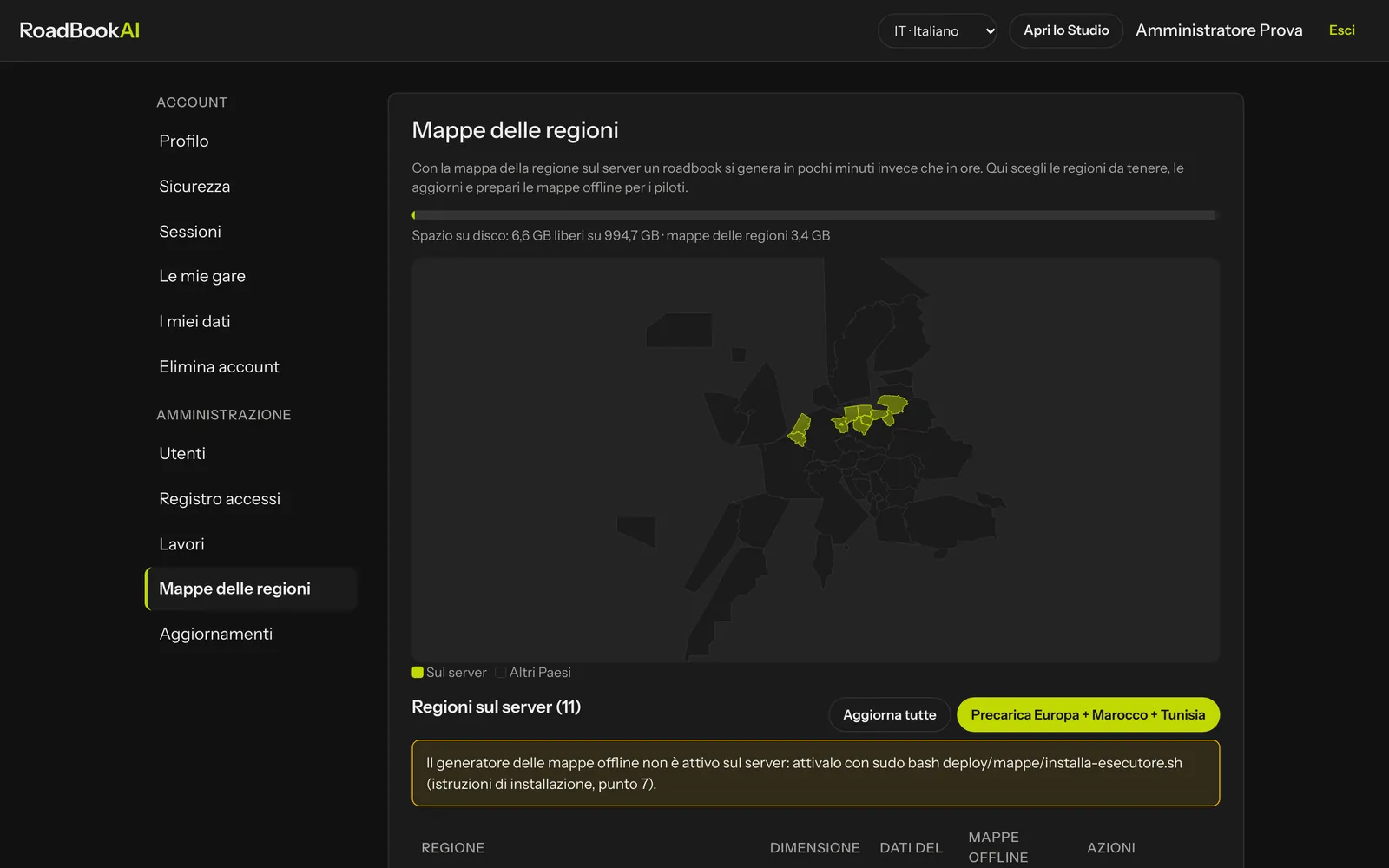 Coverage of the regions on the server and disk space.
- Coverage: the map with the regions present and the free disk space.
- Regions on the server: size, date of the data, status of the offline maps; Update (or Update all) downloads again only the ones that have changed, Delete frees up space.
- Add regions: from the catalogue by continent and country; for large countries it is better to choose the subregions (a smaller file is read faster). Downloads run one at a time, in the order you request them, after the disk space check.
- Preload Europe + Morocco + Tunisia: all European countries, Morocco and Tunisia, split into subregions, about 33 GB in about 190 files; regions already present are not downloaded again.
- Automatic update: checks and updates all regions every N days.
- Offline maps: for each region Generate (or Regenerate, when the region is newer) the vector maps that the apps download for GPX navigation. The offline map generator is activated once on the server, as explained in the installation instructions.
Updates
RoadBookAI is updated from the back office, without a terminal. Every version is signed at the source; the server downloads it, verifies it, takes a backup of the database and restarts the Studio with the new version. If the new version does not respond within a few minutes, it goes back to the previous one by itself.
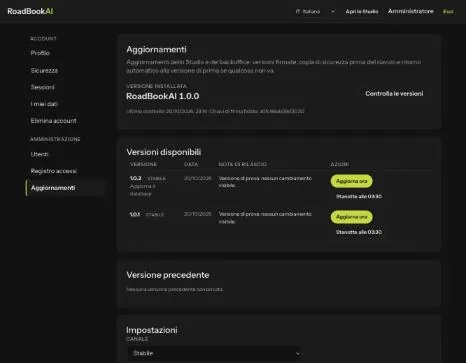 The installed version, the available versions with their release notes, the settings.
- Check versions: the versions available in the chosen channel appear (Stable, or Test to see test versions too), with date and release notes. Those that cannot be installed say why (not newer, an intermediate version is needed first); those with an invalid signature or manifest end up among the discarded ones.
- Update now or Tonight at…: signed-in users see a notice at the top of the Studio with the minutes remaining.
- During the update the page shows the steps in real time: signature check, download, notice to users, race check, stop, backup, start, health check, database migrations, completed.
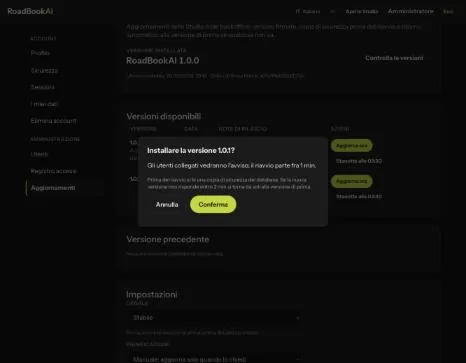 Before confirming: notice, backup and automatic rollback.
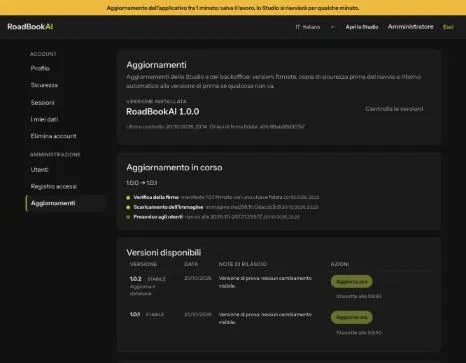 The steps in real time and the notice at the top of the Studio.
Race stage in progress: while a race stage is open for at least one entrant (or live positions are arriving), updates are blocked: the page lists the stages and until what time. They can be forced only with an explicit choice.
Go back to the previous version restarts the previous version, after a new backup; if you choose to restore the database too, the data entered after the update is lost (the page asks you explicitly).
Install from a package: without a version registry, you upload the .tar.gz package with its signed manifest; they are verified before installation.
In Settings you choose channel, schedule (manual or at night, with the time), minutes of notice and of health wait. The History keeps every update with its result, who requested it and the steps. Every action also stays in the sign-in log. The page and its actions are for administrators with two-step verification only.
The backup includes the database, the local key and the configuration: the roadbooks on disk are not touched by the update. The installation instructions also explain how to restore by hand.