

Create and review
The Studio
Library, three-panel editor, map, RoadBook and inspector - how to review a roadbook note by note, even from the keyboard alone.
The Studio is the page where you review your roadbooks. It has two views: the library with all your roadbooks and the editor of a roadbook, with map, RoadBook and inspector side by side.
The top bar also takes you to the other parts of the Studio: Public roadbooks (the catalogue, see Public roadbooks), your name (the user area, see Account and security), Events (for organisers and their teams, see Events and stages), Replay (your rides and, for tutors, the groups), the language (Italian, English, French, Spanish, German) and the theme button, light or dark.
The library
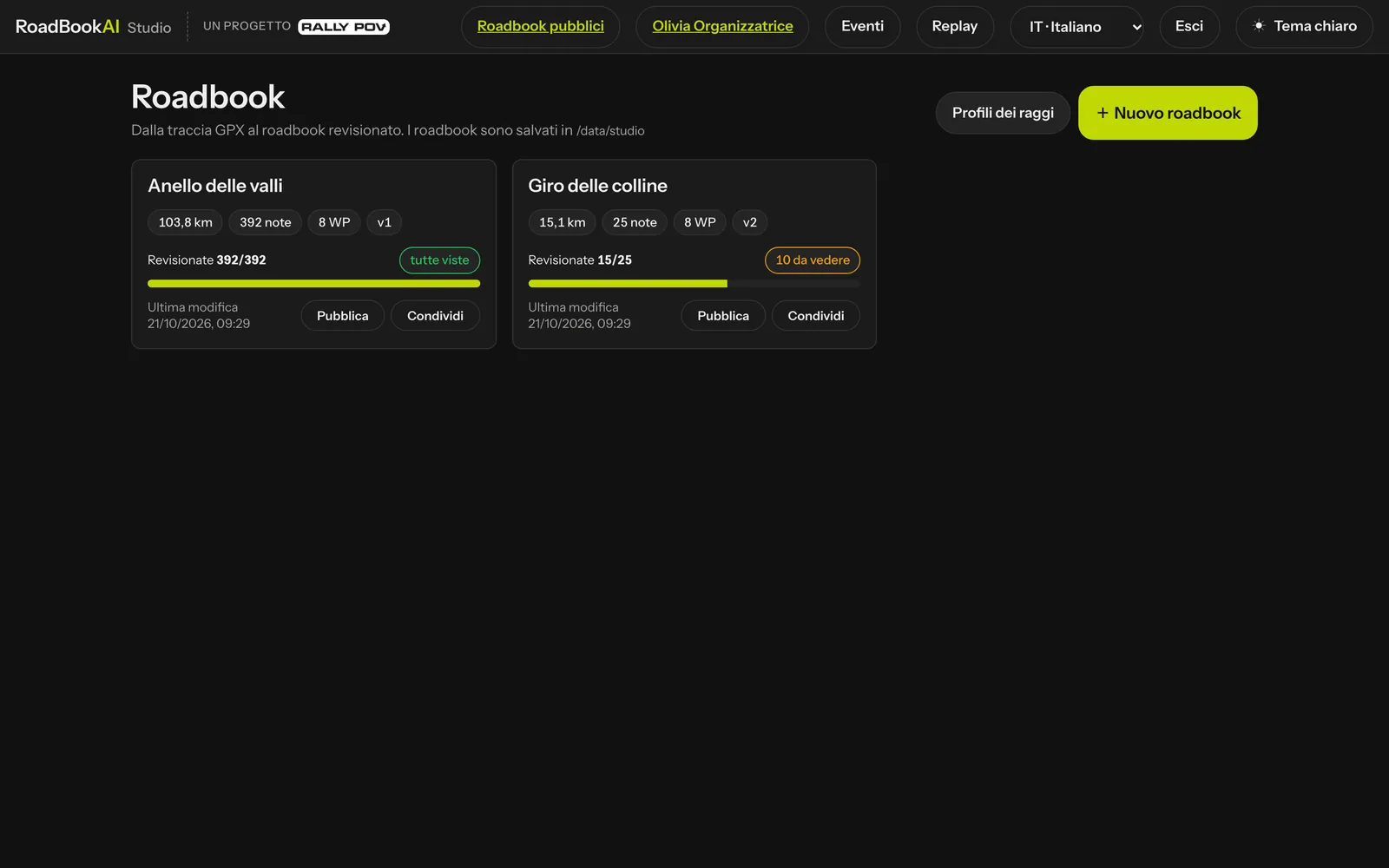 The library: one card per roadbook.
Each card shows km, number of notes, waypoints, version, the Training profile if you chose it, how many notes you have already reviewed (with the progress bar) and the date of the last change, with the Publish (see Public roadbooks) and Share (see Account and security) buttons. The "N to check" label counts the notes still in the proposed status; once you have seen them all it becomes "all checked". One click opens the editor.
The editor
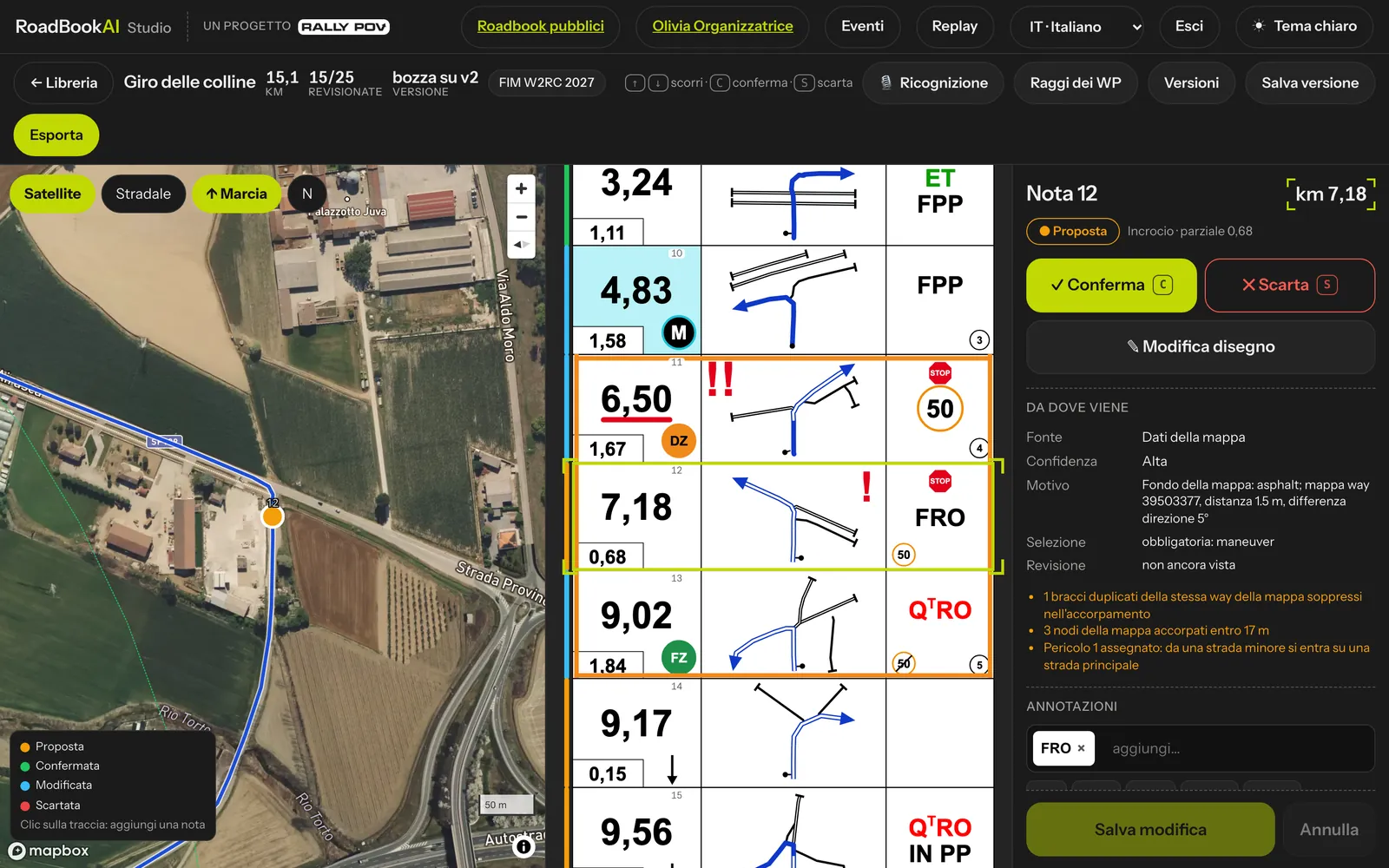 The editor: map on the left, RoadBook in the centre, inspector on the right.
The top bar shows the name, the km, how many notes you have reviewed and the version open (draft on v1, v2…). On the right are the 🎙 Recce, Versions, Save version and Export buttons; ← Library takes you back to the list.
The three panels are always in sync: pick a note in the RoadBook or on the map and the inspector shows that note.
The map
- Satellite or Streets with the buttons at the top.
- ↑ Heading up rotates the map so that the direction of arrival at the note points up, as in the note drawing; N puts north back at the top.
- The track is the blue line; notes are dots coloured by status: orange proposed, green confirmed, light blue modified, red rejected. Waypoints have their own colours and the dashed opening and validation circles.
- One click on the track opens the window for adding a note at that point (see below).
The RoadBook
Notes are drawn to the dimensions of the PDF Dakar: total km, partial frame, drawing and annotation column. The coloured border on the left shows the status. Rejected notes are at the bottom, in the Rejected — can be restored section.
In the draft, notes that will receive MODIF or NEW NOTE in the next saved version show it with a dashed label. Double-click a row to open the drawing editor.
The inspector
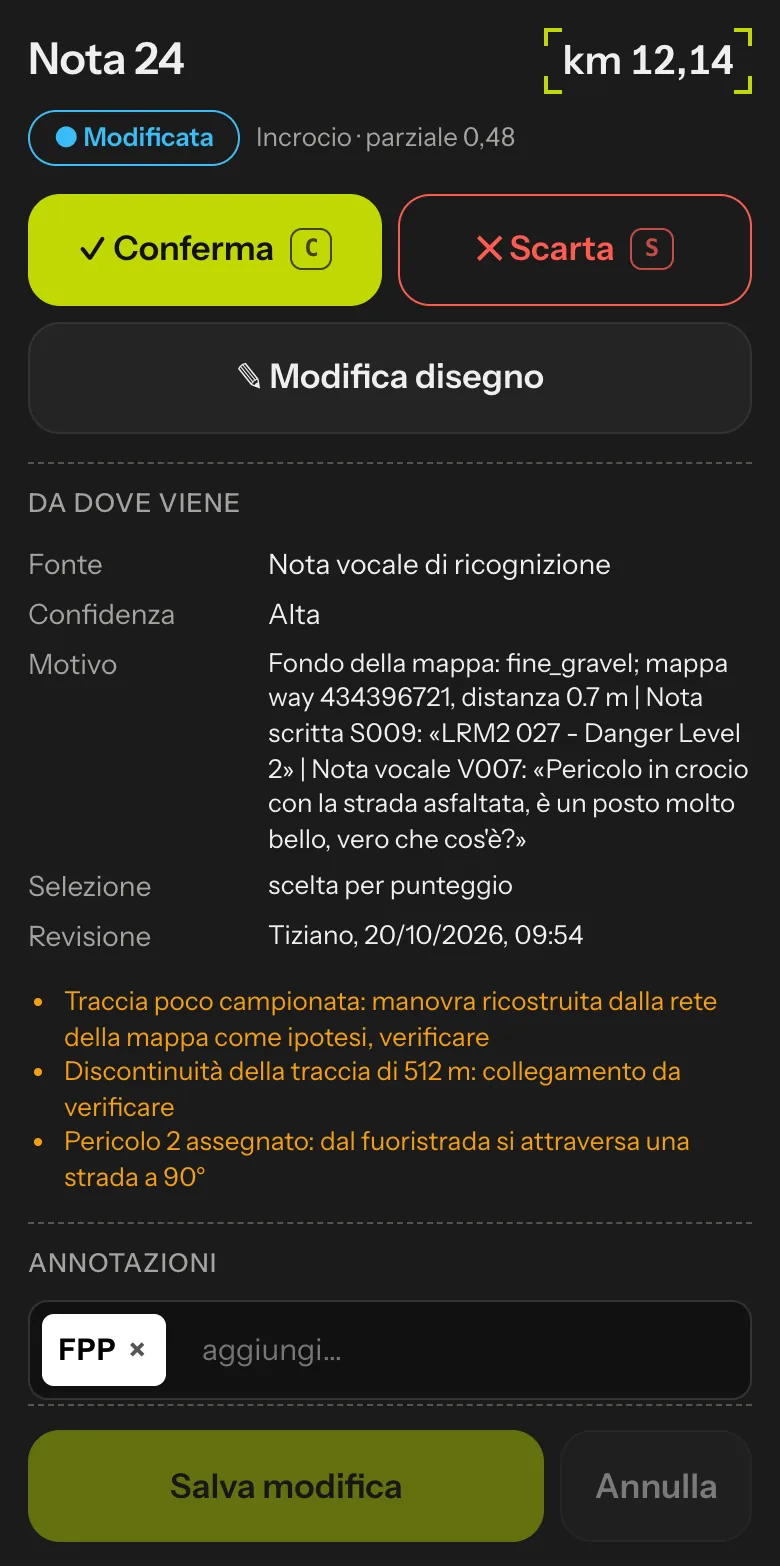 The inspector: status, review, where it comes from, annotations, CAP, danger, surface and waypoint.
From top to bottom:
- Note N with the km, the status, the type (junction, roundabout, change of surface…) and the partial; MODIF or NEW NOTE if present.
- ✓ Confirm and ✕ Reject, or ↺ Restore for a rejected note.
- ✎ Edit drawing, which opens the drawing editor.
- Where it comes from: source (map, GPS track, reviewer, recce voice or written note…), confidence, reason, who reviewed it and when, and any warnings.
- Annotations: the words of the FIA lexicon (PP, FPP, FRO, QᵀPP, QᵀRO, IN PP, HP, DEP, ARR, BIG, SMALL, FOLLOW, /5km…) to add with one click or to type. Words with Qᵀ (leaving the road you are following) are in red. Below, the free text in English, to be used sparingly (BIG TREE…).
- CAP and danger: the CAP from 0 to 359 with its type (exit, average A, calculated C, oblique) and the danger from 1 to 3 exclamation marks.
- Surface: the arrival line, the exit line and every road in the drawing (asphalt, track, small track, faint track, off-track HP…).
- Save changes applies everything at once: the drawing and the row update immediately and the note becomes modified.
- Waypoint: + Add waypoint or the card of the note's waypoint (see Waypoints).
A saved version opens view only: a bar at the top says so, and Open the draft takes you back to the draft.
Reviewing from the keyboard
| Key | Action |
|---|---|
| ↓ or J | next note |
| ↑ or K | previous note |
| C | confirm and move to the next |
| S | reject and move to the next |
| R | restore the rejected note |
Keys do nothing while you are typing in a field. With confirm and reject you move through the roadbook one note after another, without touching the mouse.
Adding a note
One click on the track in the map opens the window for adding a note at that point:
- if the engine had already found nearby points and left them out, you see them with their drawing and the reason: Restore brings back that candidate as it is;
- with Create new note you place a note on the point of the track closest to your click, with the drawing built from the map roads and the CAP from the track.
Notes you add have the source Reviewer and get NEW NOTE in the next saved version.
Rejecting does not delete
"Reject" deletes nothing: the note goes to the bottom of the RoadBook, is not exported (except in the RoadBookAI file, where it stays as rejected and the app does not show it) and can be restored at any time.
Your work is always saved
Every action is saved immediately in the draft. If you close your browser, when you come back you will find your review where you left it. To set a fixed point, use Save version.