The rider app
GPX navigation with the offline map
Navigating the track on a map downloaded in advance, with the RoadBook warnings overlaid - dangers, STOPs, junctions, fords, speed zones - for GPX entrants, public roadbooks and your own roadbooks.
Not everyone navigates with the RoadBook. Riders entered as GPX, or riders who want to follow a track in training, see the track on a map downloaded in advance, which works offline. Underneath, the same engine as the cockpit knows the RoadBook notes and warns you, overlaid on the map, with sound and voice, wherever attention is needed.
The map
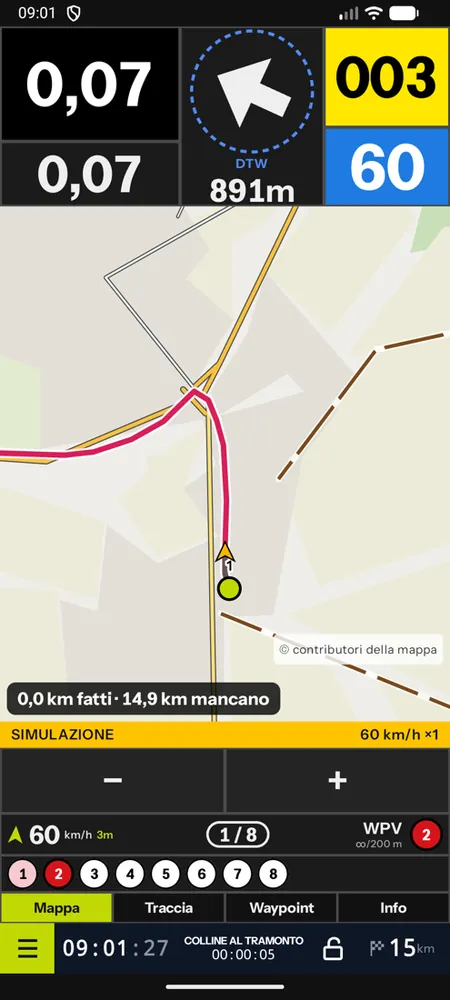
- It is our own vector map, with colours designed for off-road riding: roads by importance, tracks by type and surface, paths, fords, no-entry accesses, water, sand and rock, protected areas, peaks and passes, contour lines and relief shading, names in Instrument Sans. Light theme (readable in the sun) and dark theme.
- It covers a corridor around the track (1.5 km on each side at the highest detail, wider at distant zoom levels): a few megabytes instead of a whole region. You can see the size before downloading it.
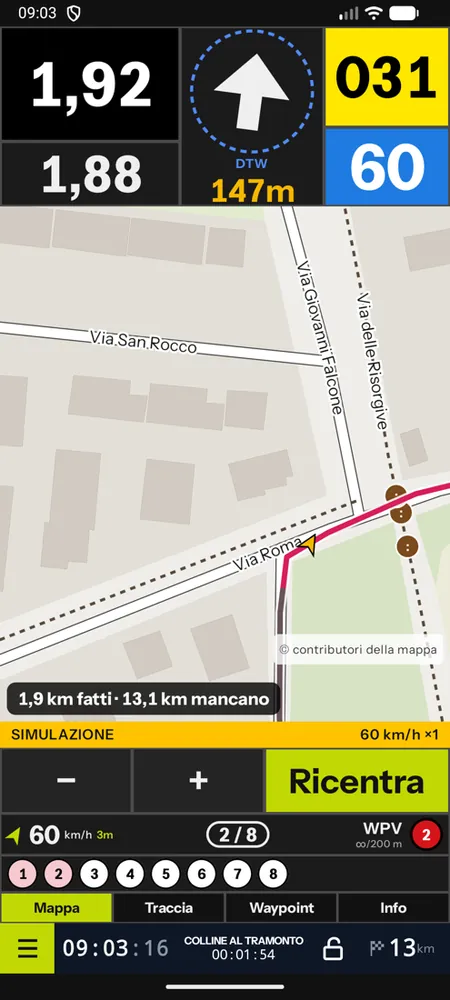
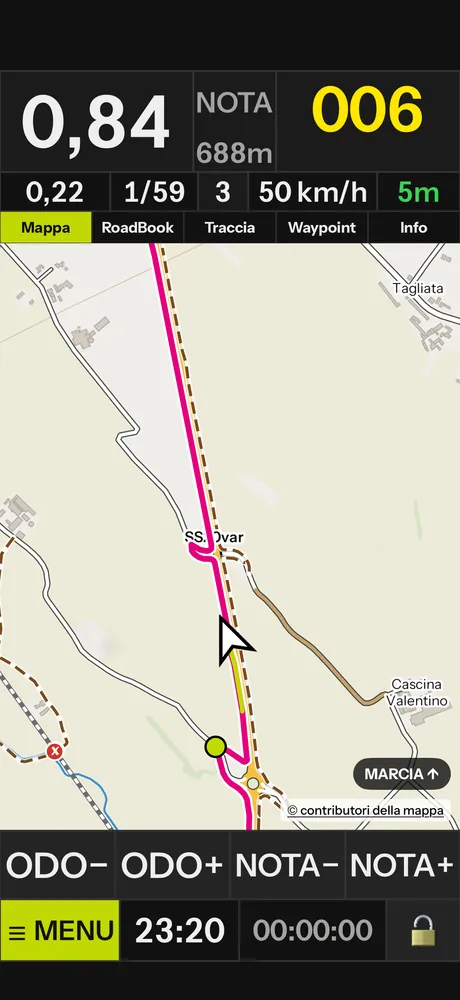
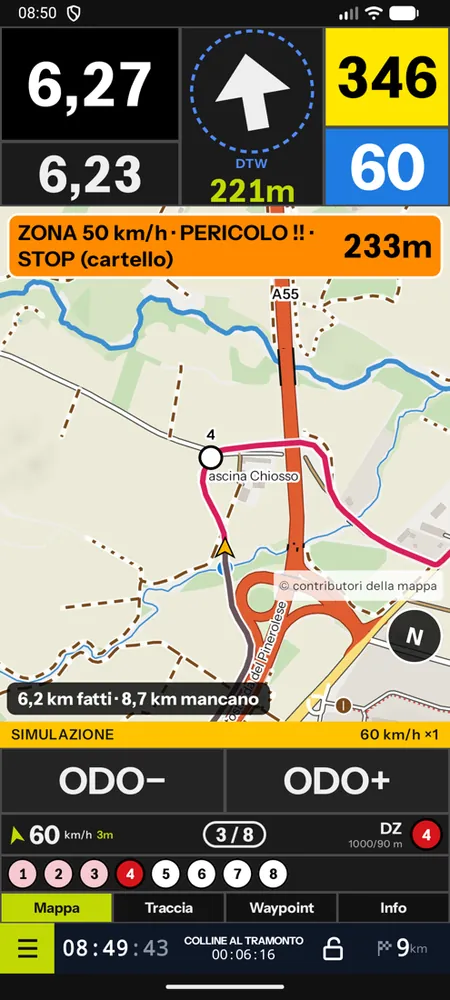
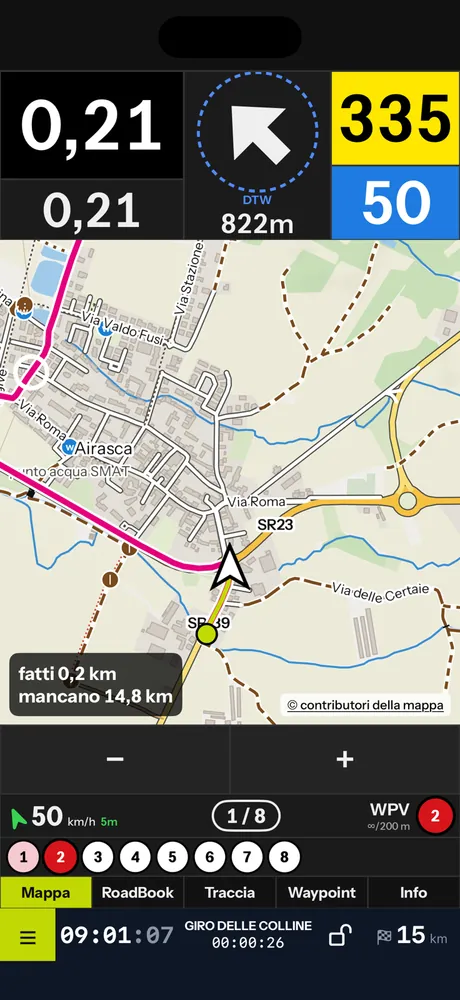
- The track is magenta with a white border; on top of it the trail ridden, the validated WPs, the target of the arrow and your position with its direction.
- The map always turns in the direction of travel, with your position in the bottom third.
- At the bottom there are only three controls: − and + (zoom, one level at a time) and Recentre, which appears when you move or rotate the map with your fingers and brings it back to your position and direction of travel. If you do not touch anything else, the map recentres by itself after 10 seconds.
- With the remote, in the Map view, Scroll forward and Note+ zoom in, Scroll back and Note− zoom out, and the magnifier key recentres. Odometer and partial are corrected from the menu and with a long press.
- At the bottom, km done and km to go along the track. Beyond 60 m from the track BACK TO THE TRACK appears with the arrow and a dashed line.
- © map contributors opens the data credits.
The warnings
The card of the next warning appears overlaid on the map, with the countdown of the metres and the other warnings of the same note:
- dangers 1, 2 and 3;
- STOP (the sign, for information only) and give way;
- crossings of and entries onto major roads, level crossings, fords;
- speed zones, neutralisations and liaisons with the limit, and a band with the metres to the end of the zone;
- difficult turns and complex forks, optional (Settings › Track › Turn warnings).
When you enter the warning distance, the signal and the voice sound. Everything from the cockpit remains: waypoints that validate just as for riders using the RoadBook, race STOP, neutralisations, off course and back-track, live position and retirement.
A GPX rider does not see the notes or the RoadBook: they see the road and the warnings. In the results RoadBook and GPX are separate categories.
Where the warnings come from
- In race stages, from the organiser's roadbook, frozen for the stage.
- In public roadbooks and your own roadbooks, from their RoadBook.
- For a track without a roadbook, the service generates the roadbook from the track by itself, with the same engine as the Studio, and derives the warnings from it: the first time this can take a few minutes ("being prepared").
GPX stages in a race
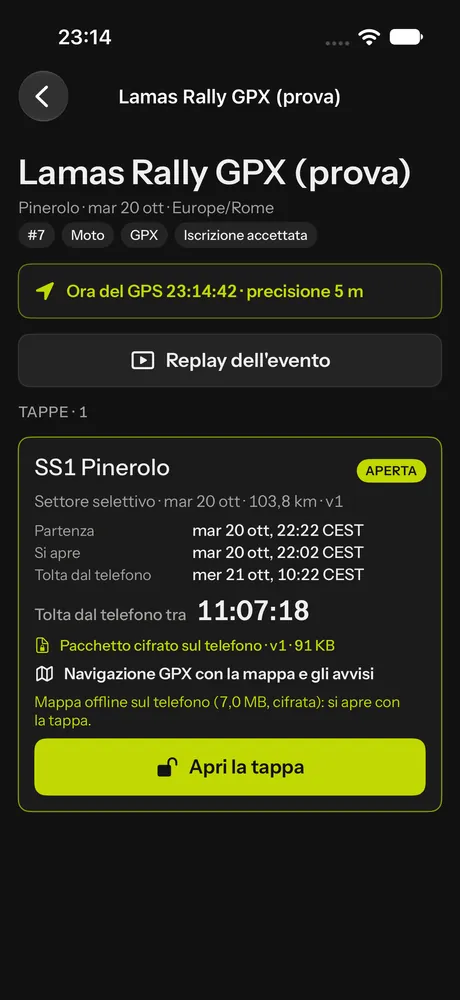
GPX entrants receive the stage map encrypted together with the package, and it opens at the same time as the roadbook, using GPS time; at the end of the stage map and key are deleted. Before the start the app explains what you will see. If the organiser decides so, RoadBook riders also receive the map: the Map tab appears next to the RoadBook. With regulation mode the map with the track can be seen only if the supplementary regulations provide for it.
Training with the map
On the page of a public roadbook or one of your own roadbooks:
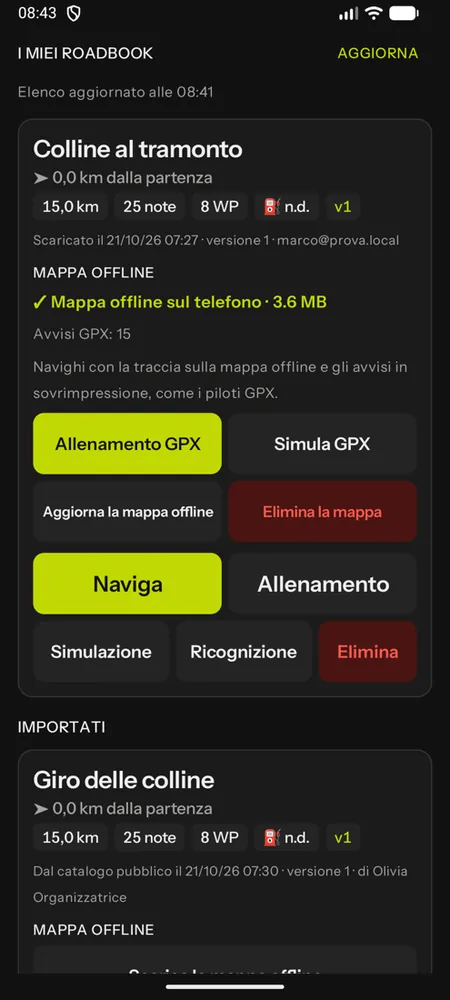
- Download the offline map (with its size) before you leave, on Wi-Fi;
- GPX training to follow the track with the GPS, or Simulate GPX to try it at home with a fake GPS;
- Update or Delete the map when you no longer need it.