

Create and review
Import an RN2
Import RN2 in the library - a finished RN2 roadbook becomes a RoadBook to review, version, export and use in stages: what is imported, notes to review or confirmed, the list of what does not fully fit, the exported RN2 identical to the original.
Do you already have a roadbook made in RN2, yours or another author's? No need to draw it again. In the library press Import RN2, choose the .rn2 file and in a few seconds you have a RoadBook in the Studio, with the author's track, notes and waypoints.
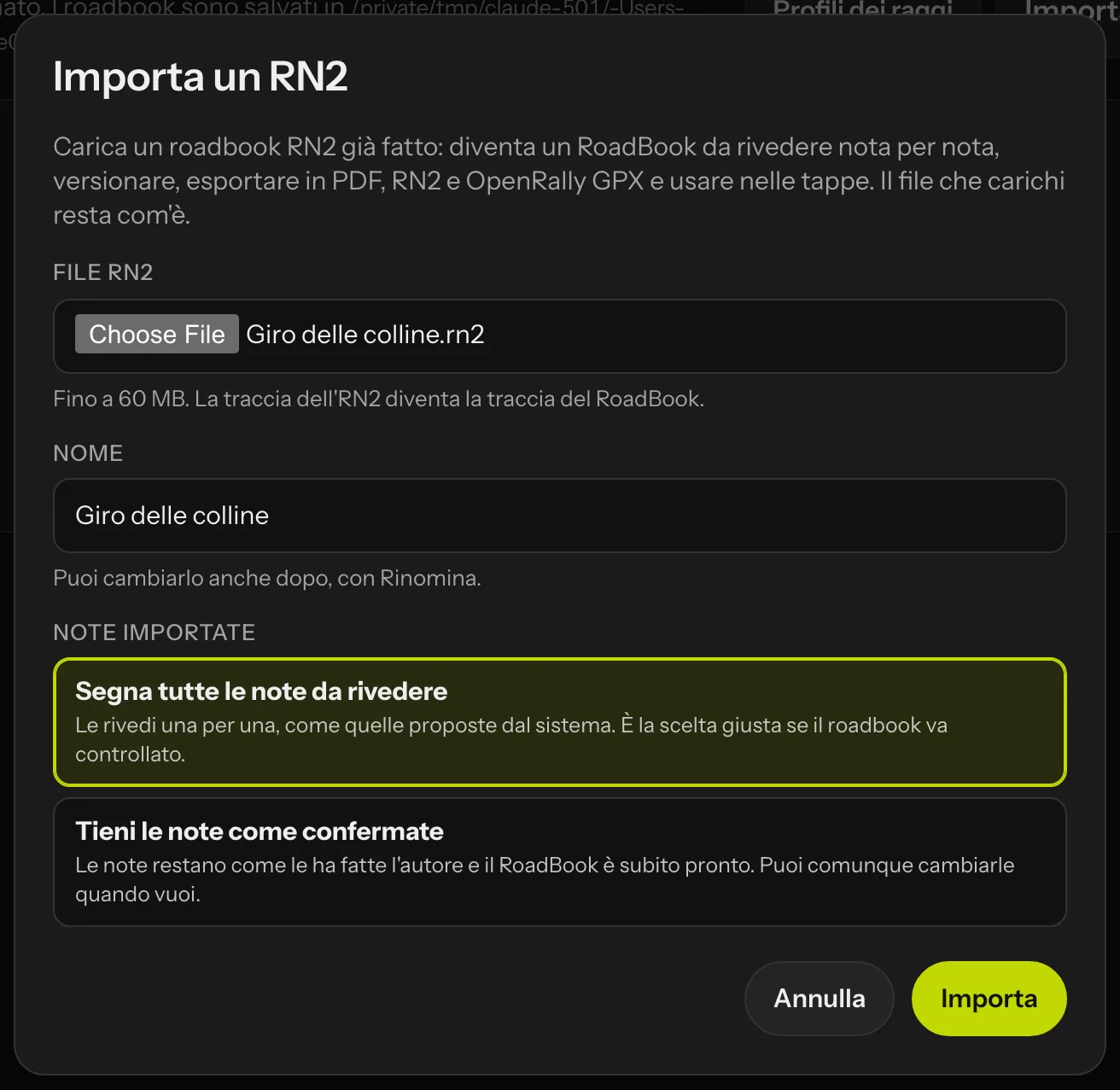 The Import RN2 window.
The Import RN2 window
- RN2 file: the
.rn2file (up to 60 MB, images included). If the file is not a readable RN2 or has no track, the Studio tells you straight away and creates nothing. - Name: filled in from the file name. You can change it later with Rename.
- Imported notes:
- Mark all notes for review (the preset choice): you review them one by one, like the notes proposed by the system. The right choice when the roadbook needs checking.
- Keep the notes as confirmed: the notes stay as the author made them and the RoadBook is ready straight away. You can still change them whenever you like.
Press Import. The RoadBook is yours: you see it in the library marked from RN2 and you can share it like the others.
What is imported
- The track, point by point, with the elevation. It becomes the RoadBook track (also as GPX, for stages, publishing and offline maps) and is never moved: the km of the notes are measured on it.
- The notes, at the same km, with the author's drawing: the blue line with its arrows and bend points (even when the author moved its start), the roads with their surface, the icons where the author put them, sized and rotated the same way, the CAP and the danger in their place.
- The texts with their colour and the coloured background behind them, wrapped as in the RN2.
- CAP, danger, speed limit, MODIF and NEW NOTE, race STOP: they become the values of the note, which you change in the right panel. A CAP that RN2 works out by itself is worked out from the track.
- The notes left out of the roadbook in the RN2: they are among the rejected notes and you can restore them.
- The waypoints with their type and opening and validation radii. Penalties are those of FIM W2RC 2027; you change them with the radius profiles.
- The route name and units.
RN2 icons that have a RoadBookAI equivalent are shown with the RoadBookAI icon and go back into the RN2 with their own.
What does not fully fit
After the import the window lists what the RoadBook does not draw, or draws more simply, with the km where it happens. You can see it again from the editor by tapping from RN2 in the top bar.
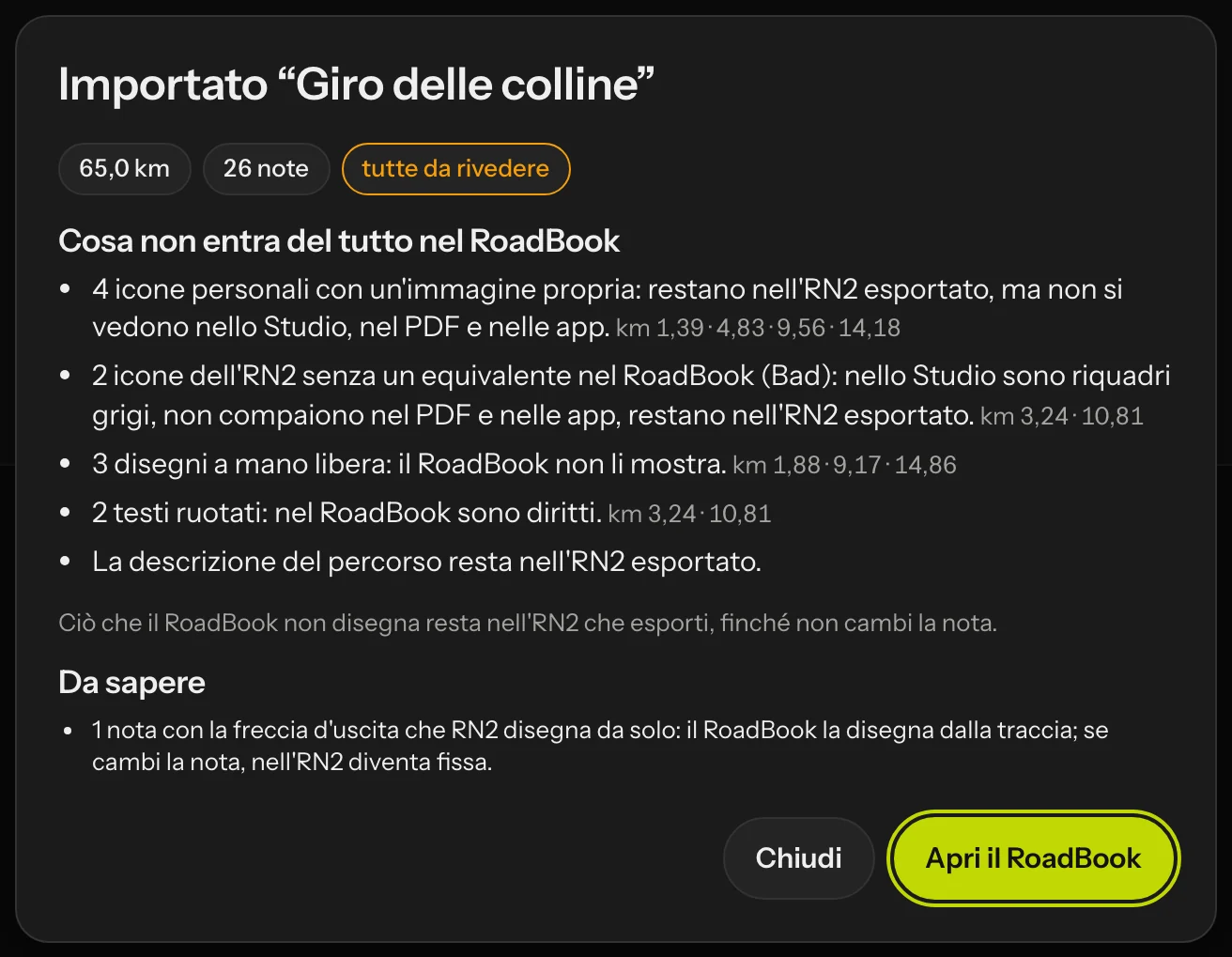 The import result.
| In the RN2 | In the RoadBook |
|---|---|
| Personal icons with their own image | Not shown in the Studio, in the PDF or in the apps; kept in the exported RN2. |
| Icons with no RoadBookAI equivalent | Grey squares in the Studio; not shown in the PDF or in the apps; kept in the exported RN2. |
| Freehand drawings, distance arrows | Not shown; kept in the exported RN2. |
| Curved arrival line, rotated texts | Straight. |
| CAP written in the annotations | The CAP goes in the drawing. |
| More than one CAP or speed limit in the same note | The first one stays. |
| Header image, route description | Kept in the exported RN2. |
Reviewing and using the imported RoadBook
The imported RoadBook is a RoadBook like the others: you open it in the editor and review it note by note with the map, save versions (version 1 is the RN2 as it was), add the recce, adjust the waypoints, export it, use it in event stages, publish it and open it in the app.
In the drawing editor the note shows RN2 drawing. If you change the drawing and do not like it, Restore RN2 goes back to the author's drawing.
The exported RN2
When you export an imported RoadBook to RN2, the notes you have not changed go back identical to the original, including what the RoadBook does not draw. The notes you changed are rewritten by the RoadBook, with the author's personal icons in place. Confirming a note does not change it.
The file you uploaded stays as it is: the Studio keeps it read-only and never changes it.